• Session 1: Introduction to Data

    1. What is Data?

    • Definition: Data is a collection of recorded information that can be analysed for decision-making.
    • Examples of Data:
      • Fitness trackers: Steps, heart rate, calories burned.
      • Measurements: Floor dimensions, furniture sizes.
      • Text Data: Word count in a book, occurrences of a word.

    2. What is a Database?

    • Definition: A structured collection of related data, stored electronically.
    • Examples:
      • Online to-do lists
      • Contact lists (Phone numbers, names, emails)
      • Shopping lists (Items, prices, quantities)

    3. Why Do Businesses Collect Data?

    • Market Analysis: Track trends, compare competitors.
    • Product Performance: Monitor product usage, downtime, customer feedback.
    • Decision Making: Use facts instead of guesses.
    • Customer Understanding: Gather insights via surveys, interactions.
    • Risk Management: Identify problems before they happen.
    • Business Goals: Data-driven decisions for growth.

    Session 2: Introduction to Databases

    1. Structured vs Unstructured Data

    • Structured Data: Organized, searchable, stored in tables (e.g., Excel sheets).
    • Unstructured Data: Unorganized, complex processing required (e.g., emails, social media posts, handwritten notes in hospitals).

    2. What is a Relational Database?

    • Definition: A database that organizes data into structured tables with relationships between them.
    • Tables consist of:
      • Rows (Records): Each represents an entity (e.g., an employee).
      • Columns (Attributes): Each represents a data type (e.g., name, salary).

    3. Relational Database Management System (RDBMS)

    • Definition: Software that enables interaction with relational databases.
    • Popular RDBMS:
      • MySQL (Used in this course)
      • Oracle
      • PostgreSQL

    Session 3: MySQL & DBeaver

    1. What is SQL?

    • SQL (Structured Query Language): A programming language for communicating with databases.
    • Uses of SQL:
      • Create, update, delete, and manage databases.
      • Perform data queries and manipulations.

    2. What is a Server?

    • Definition: A computer that provides services (e.g., stores databases).
    • SQL Server: A server specifically for managing SQL-based databases.
    • Example: MySQL Server (Open-source, relational, cross-platform).

    3. Setting up MySQL

    • Installation Steps:
      1. Download MySQL Community Server.
      2. Choose the correct OS version (Mac/Windows).
      3. Follow installation prompts.
      4. Set up a root password (IMPORTANT: Save this).

    4. Setting up DBeaver

    • DBeaver: A database management tool used to interact with databases visually.
    • Installation Steps:
      1. Download DBeaver Community (free version).
      2. Install and open the application.
      3. Connect it to MySQL Server using the saved root password.

    Session 4: SQL Basics & Data Types

    1. Who Uses SQL?

    • Data Analysts (Analyse trends, insights).
    • Business Intelligence Professionals (Create reports, dashboards).
    • Financial Analysts (Forecasting, budgeting).
    • Software Developers (Database management).

    2. What is an SQL Query?

    • Definition: A command used to retrieve data from a database.

    Example:
    sql
    CopyEdit
    SELECT * FROM employees WHERE age = 21;

      • Retrieves employees aged 21.

    3. Data Types in SQL

    • Integer (INT): Whole numbers (e.g., 25, 50, 100).
    • Decimal (DECIMAL(M,D)): Numbers with decimals (e.g., 99.99).
    • Varchar (VARCHAR(N)): Text (e.g., names, descriptions, max 255 characters).
    • Boolean (BOOLEAN): True (1) or False (0).
    • Date (DATE): Stored as YYYY-MM-DD.

    Demo: Creating a Table in MySQL

    Steps to Create a Table

    Syntax Example:
    sql
    CopyEdit
    CREATE TABLE equipment_maintenance (

        equipment_id INT,

        maintenance_cost DECIMAL(10,2),

        description VARCHAR(255),

        task_is_operational BOOLEAN,

        last_maintenance_date DATE

    );

    •  
    • Key Takeaways:
      • Equipment ID: Uses INT (Whole numbers).
      • Maintenance Cost: Uses DECIMAL(10,2) (Max 10 digits, 2 after decimal).
      • Description: Uses VARCHAR(255) (Max 255 characters).
      • Task Status: Uses BOOLEAN (0 for False, 1 for True).
      • Last Maintenance Date: Uses DATE (YYYY-MM-DD format).

    Final Notes

    • SQL is an essential tool for managing and analysing data.
    • Databases help structure large amounts of information efficiently.
    • DBeaver provides an easy interface for managing MySQL databases.
    • Data types are crucial to storing and retrieving accurate information.

    https://www.youtube.com/watch?v=JLSk10rC3p4&ab_channel=CodeFirstGirls


    +
  • Now that we’ve covered the basics of Tkinter and how to read and write files in Python, it’s time to start piecing together the beginning of our code. ʕ•ᴥ•ʔ

    Since we’ll be getting information from the user, we need to understand how this is done using Tkinter in Python.

    First, let’s define a function. We’ll call it ‘add’. In Python functions are usually defined using the def keyword. We’re naming this function add because its purpose is to store usernames and passwords in a text file.

    Having a function is important because it acts as an independent unit of code. This means it can be tested separately without affecting the rest of the program.  Along with the fact  functions can be called anywhere, making the code more efficient and easier to manage, especially in large projects.

    Now for getting values from the user. We would get the user’s input through the ‘get()’ method. This is an entry widget within tkinter to get single line text input from the user. We would also need to create an input field for the user within the GUI.

    Label

    The way that I did it was creating the input box for the user. We would be using something called a ‘label widget’. This is the way i have done it:

    • tk.Label(app, text=”USERNAME:”) – Creates a label displaying “USERNAME:” in the app window.
    • .grid(row=0, column=0, padx=15, pady=15) – Positions the label in row 0, column 0, with padding for spacing.
    • tk.Entry(app) – Creates an entry field for user input.
    • .grid(row=0, column=1, padx=15, pady=15) – Positions the entry field in row 0, column 1, next to the label.

    Let’s look at the output now:

    Looks good! Now we just need to do the same for the password label. It follows the exact same process, we just change the label name and adjust the positioning of the field accordingly.

    We should also test whether the input fields work by typing in them to ensure everything functions as expected.

    Now let’s get the user input sorted out.

    We need to understand how this would be done since we are using Tkinter, not the actual core Python input function. While programming languages share similar concepts, we typically collect user input and store it in a variable.

    We would be using the ‘.get()’ function to do this. The way that we would structure this would be by ‘variablename = labelname.get()’. Like this:

    • entryName.get() – gets the text entered by the user in the entryName input field.
    • username = entryName.get() – Stores the inputted text in the variable username for further use in the program.

    Inputting data into text file

    Okay, so what’s next? Well, judging by the title, you can probably guess we need somewhere to store the data, like a text file! Very safe and secure, don’t worry.

    Ideally, usernames and passwords should be stored in a secure database with proper encryption, but that’s why this is KaiPass v1, a simple first version. For now we’ll stick to writing the inputted data into a text file before exploring more secure methods in later versions.

    Using what we understood from the previous blog, we would need to open the text file, write the username and password at the bottom of what’s already written and make sure that isn’t cleared. So we would be using the mode ‘a’.

    This also creates the file for us, so we don’t need to do that either. Using the ‘writing’ format, this is what we get.

    • with open(“passwords.txt”, ‘a’) as f: – Opens (and creates the file because it doesn’t exist) a file named “passwords.txt” in append mode (‘a’), meaning new data is added to the end of the file without deleting existing content.
    • f.write(f”{username} {password}\n”) – Writes the username and password to the file, separated by a space, and adds a new line (\n) to ensure each entry appears on a new line.

    But what happens if the user only inputs just a username? Or only a password? or nothing? We need validation. The most simple way to do this is through ‘if’ and ‘else’ statements. 

    If username and password:

    Input username and password in text file

    Print “Successfully inputted”

    Else

    Print “ please enter both the fields”

    We would use the ‘messagebox’ as a way to inform the user if they have done things correctly or not. We can also use the revelevent icons as well.  

    • if username and password: – Checks if both username and password are provided (make sure that the fields are not empty).
    • If both fields are filled (true):
      • Inputs the values into the text file
      • messagebox.showinfo(“Success”, “Password added !!”) – Displays a success message in a popup box.
    • If any field is empty (else_:
      • messagebox.showerror(“Error”, “Please enter both the fields”) – Shows an error message, prompting the user to fill both fields.

    The submit button 

    Now we need to create a submit button for the user. This button would correspond to the function that would  be used, to ensure that function would be used! We use a similar  way in creating the label. 

    • tk.Button(app, text=”Add”, command=add) – Creates a button labeled “Add” inside the Tkinter app. When clicked, it calls the add function, which handles saving the username and password.
    • .grid(row=2, column=0, padx=15, pady=8, sticky=”we”) – Positions the button

    Now let’s try see if it works

    It works! ʕ•ᴥ•ʔ🎉

    Now what! Probably test what happens if there isn’t any text inputted within the field, then we should be done for this function. Here we can see that the if function does work:

    The next blog would be able the getlist() function, where the user can see the username and passwords that are already within the text file. Now let’s code ‘em all! ʕ -ᴥ•ʔ♡

    Resources:

    +
  • Roky (for now) is a semi-graphical, terminal-based application developed using Lanterna. The first version is currently in development, and while progress is gradual, as Uncle Bob states “The only way to go fast, is to go well.” It’s important that we don’t rush features but instead deliver them at a consistent and predictable pace. This approach helps everyone improve their skills while ensuring that the features we develop remain stable once implemented.

    Our goal? To rival the evil WhatsApp with this project. Do not fear! I have full permission to talk about it, straight from the Squirtle Man (Tom) himself. ʕ – ᴥ – ʔ

    The main purpose of this project is for us, as a collective group, to develop an understanding of the Kotlin language along with Git and GitHub. Gaining a core understanding of the tools developers use in their daily work is valuable, even if you don’t plan to pursue it as a career. It’s also a great addition to your portfolio, helping you stand out to potential employers.

    What are we using

    We are using the programming language called Kotlin. The reason why we used Kotlin is because it is easy to learn, especially if you were a previous Java developer. Some people with the project do have this previous knowledge, so picking up this language was well easy. It also keeps the code quite short. As ‘simple’ as the project is, it is quite intense and what’s great about Kotlin is that it keeps the code short and readable, so I can actually understand what is being coded. Another thing I have realised is that it isn’t afraid to borrow great ideas from other languages, making it more practical and flexible. Kotlin is fun to use. It makes coding more enjoyable, turning it from just work into something exciting again.

    We are also using the IntelliJ IDE. Great name honestly for an IDE, I’ll probably name my son that to be fair. The IntelliJ IDE makes writing Kotlin code even easier by fixing common mistakes automatically, though unfortunately you can’t add pets to it, goodbye Dragonair.  ʕ ´• ᴥ•`ʔ

    We have used Gradle, a build automation tool, to help build and manage our project. It uses simple scripts, making it easier to customise and automate tasks, especially for this app. These tasks include downloading dependencies, compiling code, running tests, and packaging apps. Gradle also supports multiple languages, such as Kotlin, Java, Groovy, and more!

    My favorite command is ./gradlew ktlintFormat. It runs Ktlint, a linting tool that automatically formats Kotlin code. No need to worry about formatting, just run the command in the terminal and BOOM, that dreaded “build failed” message often turns into a “build successful” most of the time. ʕᵔᴥᵔʔ

    On to the app itself

    The currently what the app looks like:

    A pretty cool retro-style interface  where you navigate through the menus using the keyboard instead of the mouse. In the next few posts, I’ll explain each menu, their functions and how it was implemented in the code. This will help both of us understand the code better and see how it affects the application. It’s the best way to learn!

    Thank you Tom for helping with editing this post. 

    Now let’s code ‘em all! ʕ -ᴥ•ʔ♡

    Resources

    Links to contributors within the project

    +
  • Since I’m using a text document instead of a database for simplicity, we first need to understand how to open, read, and write files in Python before diving into anything else.

    ദ്ദി ʕ-ᴥ• ʔ

    The first step is understanding the different file modes and how they determine where data is positioned within the file. But don’t worry, Python’s built-in open function already simplifies this process, making it much easier than what’s outlined in the BSD library function manual.

    ‘’r’’: Opening the file for reading (starts at the beginning)

    ‘’r+’’: Opens the file for reading and writing (starts a the beginning)

    ‘’w’’: Opens the file for writing (It clears the pre existing content starting from the beginning or creates a new file)

    ‘’w+’’: Opens the file for reading and for writing (It clears the pre existing content starting from the beginning or creates a new file)

    ‘’a’’: Opens the file for writing (Creates new file if it does exist, writes and the end)

    ‘’a+’’: Opens the file for reading and writing (Creates a file if it doesn’t exist, reads normally but writes a the end)

    Okay since that is out of the way, we can start coding ʕ ᵔᴥᵔʔ

    Lets try understanding the syntax that is usually used within this kind of coding. The usual syntax is ‘file = open(“filename.txt”, “mode”)’.

    • ‘File’ : being the variable (if needed)
    • ‘Filename.txt’ :the name of the file (either being called or being created)
    • ‘Mode’ : the mode that you want to open the file

    Reading

    For reading, the code would look something like this:

    • ‘With open()’: this automatically closes the file after the user. It is an easier way then added an extra line of ‘file close’
    • ‘File.read’ – reads the whole file. Within the code, we have placed this into a variable called ‘content’ so we can print it out to the user
    • ‘print(content)’: will output the file contents out to the user

    In simple terms, this file reads the selected document and outputs its contents to the user in the console. While there are many ways to achieve this, I find this method to be the simplest.

    We can also modify the code to read the file line by line using ‘print(f.readline())’, or even specify how many characters to read with print ‘(f.read(5))’. There are many ways to evaluate and refine your code.

    Writing

    With writing in your code, it is quite similar to reading. It uses the same syntax but uses ‘file.write’ instead of ‘file.read’

    • ‘File.write’ : writes within the file. It has the same syntax as a print function
    • ‘/n’: New line

    Again, just like with reading, you can add more code to customise it exactly how you want. For our project, we’ll be taking input from the user and saving it to a text file, but we’ll get to that soon. Let’s keep it simple!

    Checking if Files exist

    Since we can create files using this command, we can also check if they exist! This process is a bit different from what we’ve done so far. First, we need to import the os module and then create an if statement. It would look something like this:

    if os.path.isfile(filepath): print(“File exists”)

    • ‘Import os’ : This gives us the ability to create, remove and change directories as well as manipulate files. In this instance, we are checking if the file exists within the folder. 
    • ‘If’: This would be the if statement that we use. If the text file is there within the directory, we will print out to the console ‘file exists!’. ‘Else’, we will print out ‘doesn’t exist!’
    • ‘Os.path.isfile’ : checks if a given path is a file.

    Of course there are also different ways of even checking files, which maybe I’ll look at later.

    I’m gonna be honest, this post is getting long so i’ll make a part 2 on how we will be implementing this within the final code! let’s code ‘em all! ʕ -ᴥ•ʔ♡

    Resources:

    +
  • Using Tkinter has actually been a good way into implementing a GUI within the KaiPass app. Though it does have its own limitations, for a noob like me, it’s great!

    ʕっ•ᴥ•ʔっ❤︎

    I thought this post was kind of funny, but it’s also true. Even though Tkinter is simple, it’s a fantastic tool for creating something simple or even more complex. The only real issue is that I have no idea how to pronounce it. I usually just call it “Tinkerbell” in my head.

    Is Tkinter on your device?

    The most important thing is to ensure that Tkinter is installed. Usually when downloading the python package, Tkinter is installed with it. To test it, first you need to import tkinter, then use the tk._test() function. Like the following: 

    If the output would be the Tkinter window pop up, then that means it works! If not, you need to install it mate. There would be a resource at the bottom to help installing the library, depending on what device you have. 

    How the start

    Lets import Tkinter into the top of the page using  import tkinter as tk. We use Tkinter because it is a library of preexisting functions, just like other libraries you might use in any project. These libraries make programming easier by allowing us to reuse multiple functions that are already written for us, saving time, improving code quality, and even sparing our fingers from too much typing.

    The Tkinter library offers a ton of functions for creating graphical user interfaces (GUIs). It simplifies designing and managing elements like windows, buttons, text boxes, and other components you might need.

    We will also be importing a ‘messagebox’ from the Tkinter library. We do this by typing ‘from tkinter import messagebox’. The messagebox function would be able to give your user some feedback after they have completed a task. Think of it as that error message you get on windows. Like this: 

    Great editing skills I know. ᕦʕ •ᴥ•ʔᕤ

    This is a good way to inform the user if an error has occurred and how to fix it/why, and or a confirmation if something is completed.  It is also helpful for you as the developer, making it easier to test and pinpoint the errors or successes in your application.

    Initialising it (S cause I’m bri’ish)

    Next we need to initialise the Tkinter application. Initializing in simple words just means ‘to set’ something (variable, object or system) with an initial value or state before using it. I know that isn’t really in ‘simple words’ but it does explain what it kind of means.

    The way that this is done this through the following code:

    if __name__ == “__main__”: 

    app = tk.Tk() 

    app.mainloop()

    There are actually a few different ways that this could be done, but this one does make sense within my pea sized brain. Now let’s understand what each line actually means.

     if __name__ == “__main__”: makes sure that the code inside it only runs when the script is executed directly (Ctrl+ K + S on vs code), not when you it in another program.

    app = tk.Tk() Just create the main application window using Tkinter

    app.mainloop() Keeps the app running and open(through that event loop) and  handling user actions like clicks or typing until you close it.

    Now let’s run!

    Basic customisation

    One thing cool about Tkinter is that you can customise the GUI to your heart’s desire, but for now we shall just cover the basics. 

    For this we will make the windows a fixed size through the command of ‘.geometry(“length x width”)’ and to change the background we can use ‘.config (bg= ‘colour’)’. 

    It’s not really necessary to design the GUI right away, as it’s better to start with a clear plan for how you want it to look.Though it is still helpful to understand the basics early on.

    One cool feature of adding colours in Tkinter is that you’re not limited to using color codes. Tkinter includes its own color chart, which is handy if you’re unsure about the color scheme you want to use.

    We should also add a title to make it look ‘professional looking’ , we do this by implementing the .title(“title”)

    Now the final result would look like this:

    For the buttons and input boxes, I’d probably advise you to do it while you’re doing the functions, or not. You can do whatever you want.

    Not sure what the next post would be but, let’s code ‘em all! ʕ -ᴥ•ʔ♡

    Resources:

    +
  • Creating a password manager (The long way). 

    This is definitely gonna be a long process ʕ •ᴥ•ʔ.

    The purpose of this app is primarily to store passwords in a text file (possibly transitioning to a database in version 2 of KaiPass), hash the stored passwords (maybe include encryption and decryption in version 2), and randomly generate secure passwords for users.

    I know hashing isn’t typically a part of a password manager, but hey, it’s my project, so I’ll do what I want, innit? This project is part of my journey to explore and understand different topics in programming and cybersecurity through hands-on experimentation.

    Also, a big hello to my little Pokémon friend who’ll be joining me on this adventure. ʕ •ᴥ•ʔ

    What would I be using?

    For this project, I’ll be using Visual Studio Code, an Integrated Development Environment (IDE), similar to IDLE, but nicer to use and with additional features as well. 

    The programming language I’ll be working with is Python. I’ll also incorporate Python libraries like Tkinter for the graphical user interface and modules like hashlib for hashing functionality.


    Credits:

    Thank you Rob and Tom for helping me with this project!!

    Resources: (i will be updating this list)

    +
  •  

    Introduction to Cyber security is a free, self paced, beginner course that is provided by cisco. It’s great for students looking to understand the basics of cybersecurity or for returning professionals wanting to brush up on their knowledge of common topics within the field. cyber sec.

    Since I’m aspiring to build a career in the cybersecurity industry, this is just one of the many courses I’ll be completing and reviewing! ʕ•ᴥ•ʔ

    First you’re thrown into a video explaining how to navigate and complete the course, alongside additional guides for extra support or accessibility.  The inclusion of transcripts at the bottom of all videos is an excellent touch. I do find it much easier to follow along when I can read subtitles or transcripts Easier to retain within the pea sized brain. 

    At the top of the course outline, there’s a feature called “Knowledge Check.” Though still in beta,  it is a quiz to test out your knowledge prior to taking the course. I guess it’s just to see how much of the content prior, during and after you have completed the course. Giving you a chance to see retake whenever and see your progress within the course

    The course is divided into five modules, all of which must be completed before taking the final exam that covers everything you’ve learned. Within each module, there are a couple of heading and subheadings. You know the kind where the teachers say you only have two questions to do,  but then you find yourself dealing with 1.1, 1.1.1, and so on? And you just die a little inside, yeah those. Here, the content is nicely formatted with diagrams, dropdown tiles, and small paragraphs that make the material easy to read and digest. It’s well-balanced and visually appealing. 

    There are also mini quizzes and questions within the course to keep up your engagement and retention of knowledge. 

    At the end of each module there is a module exam, covering the content prior and this needs to be passed so you can move on to the next module. These exams are unlimited in terms of attempts, so even if you don’t pass the first time, you can keep trying (unless you ace it in one go, like me!!   ʕᵔᴥ–ʔ)

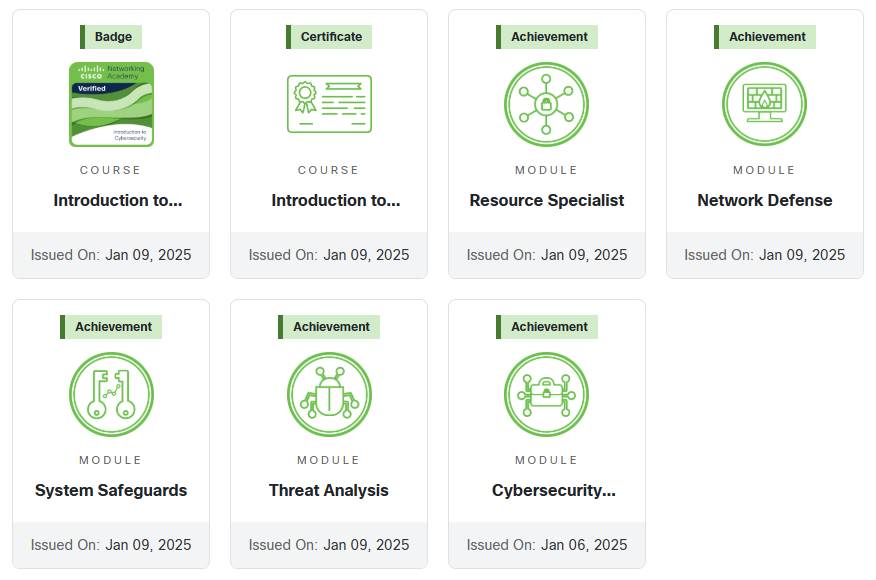
    Once you’ve completed the course, you get a cool looking badge to add to your LinkedIn, and a certificate you can shove into your employees face, in hopes they give you a job. Didn’t really work for me though. You do also get a bunch of achievements that would be added to your netacad account that you can also flaunt. Though everything is quite green. 

    The course content is excellent, providing detailed yet straightforward explanations of definitions, procedures, and laws that anyone in the cybersecurity field should know. It’s an engaging and informative introduction to the world of cybersecurity.

    +